
Using S/MIME with Outlook mobile
You wish to use S/MIME encryption with Outlook mobile, but when attempting to enable signing or encryption using the same certificate as Outlook Desktop and OWA, you see the following error:
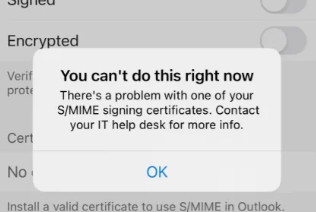
Unlike an on-premises Exchange server, Exchange online does not by default trust any publicly or privately trusted root or intermediate CAs under which S/MIME certificates are issued.
To allow this, the appropriate CA trusts must be imported into your Microsoft 365 environment. This requires generating a Serialized Certificate Store (SST) file to import into Exchange Online.
Generate the SST file
It is required to select 2 or more certificates to export an SST file. Select your S/MIME certificate and a Trusted root certificate from a trusted certification provider such as Digicert or Verisign.
- Open the run command and start certmgr.msc
- Move or copy any required Intermediate CAs from the Intermediate Certification Authorities folder to the Trusted Root Certification Authorities folder - SST export can only reference 1 folder
- Select ‘Trusted Root Certification Authorities’, and select ‘Certificates’
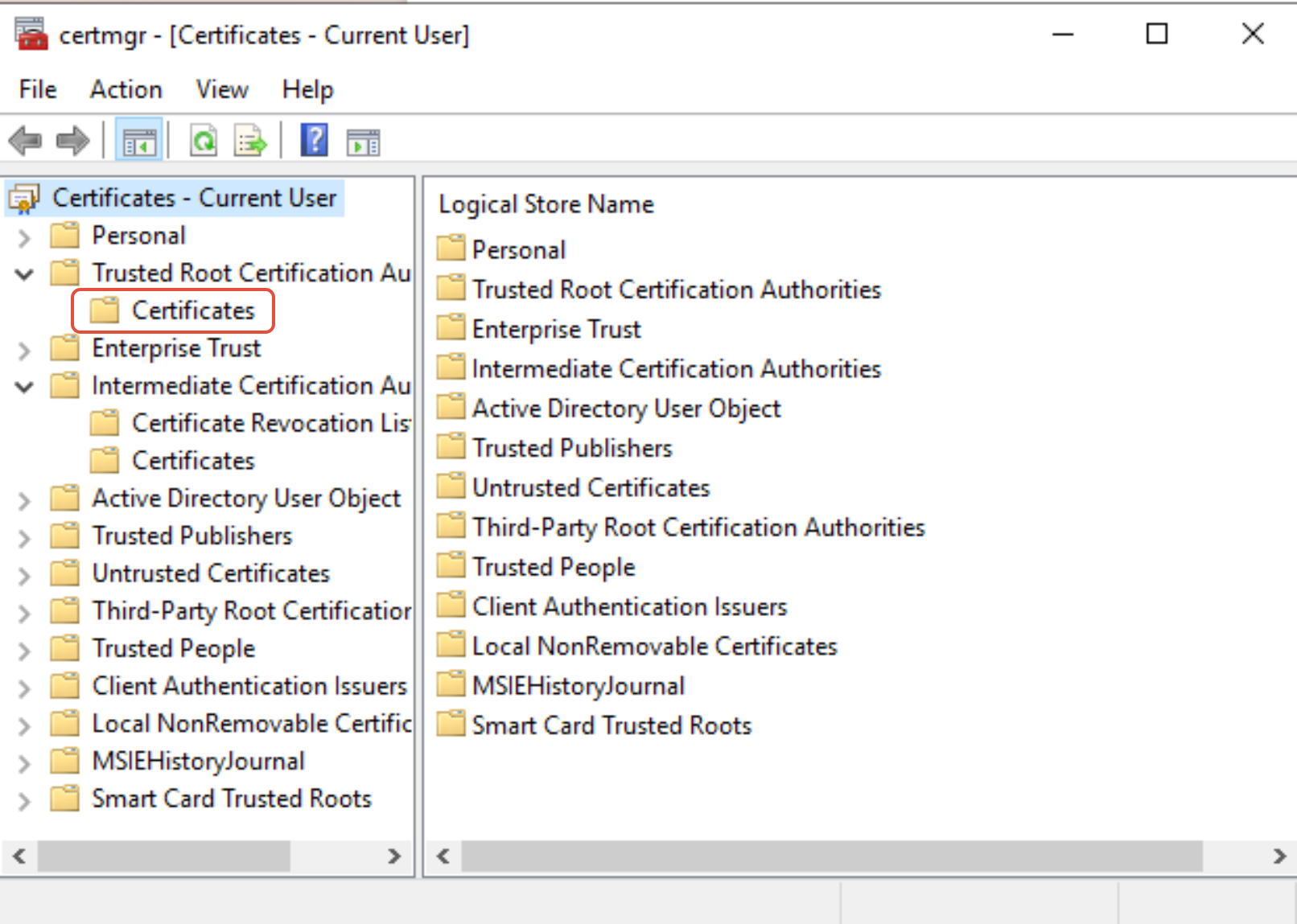
- Select the valid Root and Intermediate certificates for your S/MIME certificate using Ctrl-Click. Ensure only non expired certificates are selected
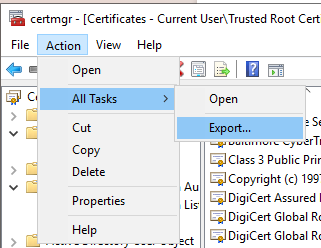
- From the menu, select Action > Export
**
 **
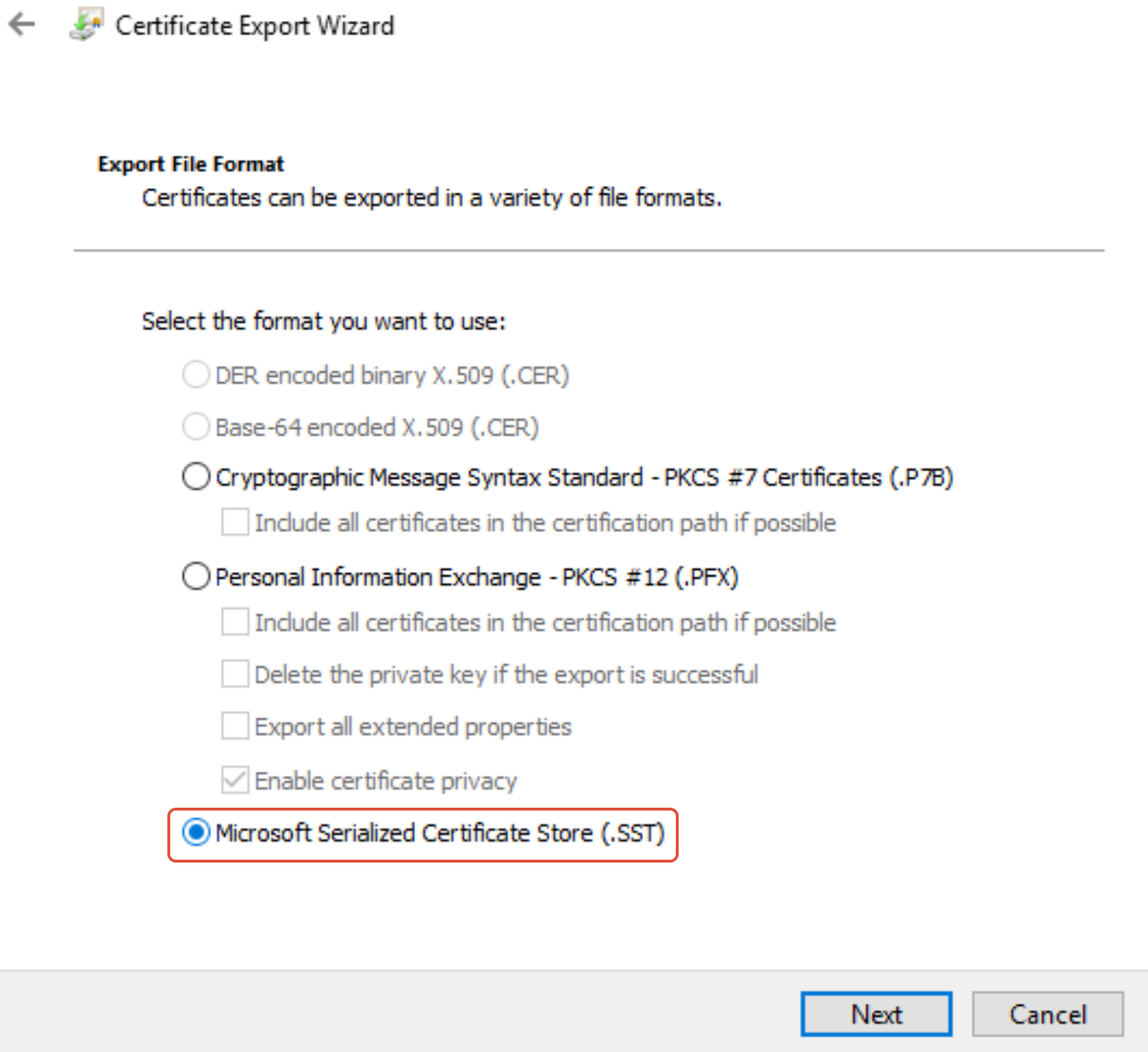
** - Select the SST option, then Next. This option will be unavailable if a single certificate is selected.
**
 **
** - Name the SST and save to a location
- Complete the export
Upload the SST file to Microsoft 365
Now that you have the SST file, it needs to be configured within Microsoft 365.
- Open PowerShell and install the required Exchange Online PowerShell module if it is not already installed:
Install-Module -Name ExchangeOnlineManagement -force - Load the module with the following command:
Import-Module ExchangeOnlineManagement - Connect to Exchange online with your admin account replacing the generic account below
Connect-ExchangeOnline -UserPrincipalName user@domain.com
A browser will open requesting your authentication credentials. - Run the following command, replacing the sample SST filename and location with your own:
Set-SmimeConfig -SMIMECertificateIssuingCA ([System.IO.File]::ReadAllBytes('C:\My
Documents\myvirtualcertcollection.sst'))
The command will complete with no feedback. If uploading a previously configured SST, you will see the following confirmation:

After successfully uploading the SST, wait approximately 1 hour for the sync to complete in Exchange.
When using Outlook Mobile, your S/MIME certificate will now be trusted.
Supported Outlook versions for Signature 365 client signatures
Compare supported Outlook versions and features for the Signature 365 modern add-in and Classic Agent.
Using the Aptos font in Signature 365
Use Aptos in Signature 365 by installing the font on sending and receiving devices, despite browser and OWA limitations.