
User is not receiving signature and is not visible in Email Signature Manager
Fix users missing from deployment by completing required Active Directory logon name and email fields.
Problem
You have a user that is a member of a deployment group, but they are not receiving a signature. Further, if you try to add this specific user in the Manage Deployment dialog, on its Users tab, they do not appear in the Select User dialog.
Reason
Email Signature Manager only includes users that have their User logon name and E-mail properties configured in Active Directory.
Solution
Perform the steps below to solve the problem:
- Open Active Directory Users and Computers.
- Find the affected user and open Properties.
- On the General tab, ensure the
E-mailfield contains an email address: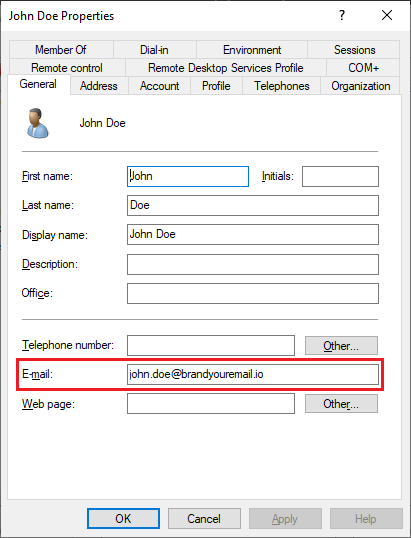
- On the Account tab, confirm a value is set for User logon name:
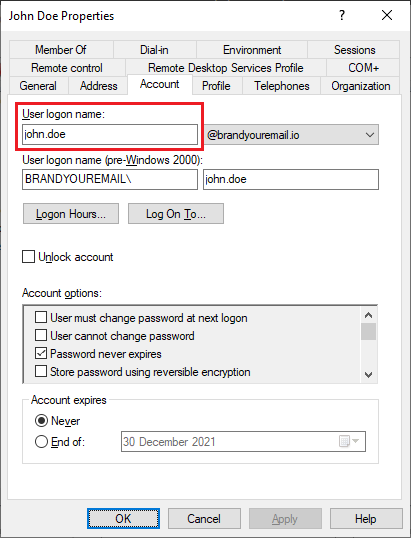
- In Email Signature Manager, click Update All in the ribbon and wait for the service to process all users.
You can open the Status Monitor in Email Signature Manager to verify the affected user is now listed.
The affected user can either wait for the Email Signature Manager Agent to automatically get the signature or perform a manual Update Now.
Applies to
Email Signature Manager, version 10 and later